Send Envelopes · Sender
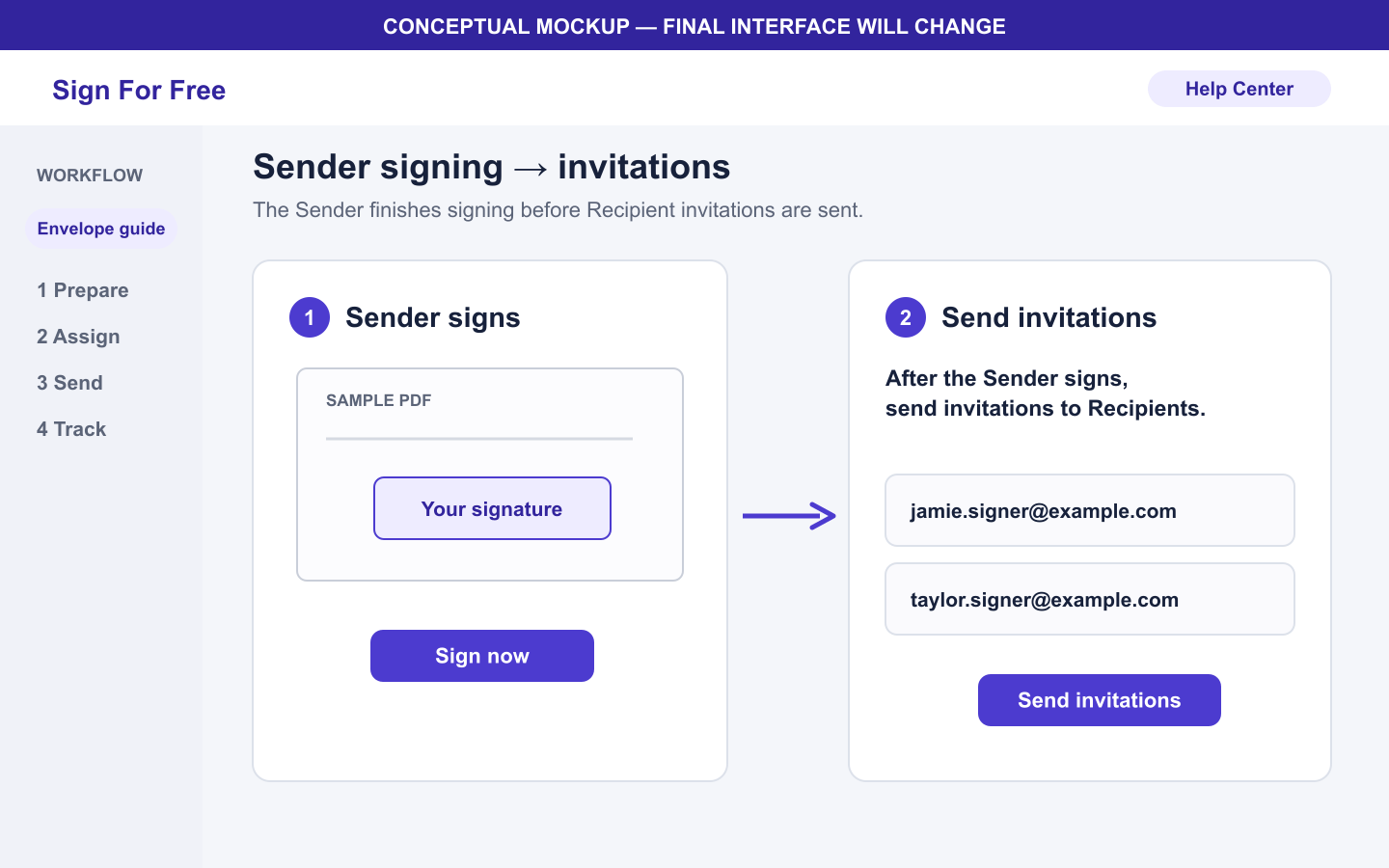
Sign as the Sender and send invitations
Complete your assigned fields and sign before you deliver each Recipient's private signing link.
Applies to
- Role Sender
- Plans Free, Basic Monthly, Basic Yearly
- Platform Web
Outcome
The Sender step is complete, the Envelope is waiting for Recipients, and invitation delivery is available for your plan.
Before you start
- Create an Envelope with a PDF, at least one Recipient, and at least one field.
- Assign every Signature, Date, Text, or Stamp field to the correct person, with at least one field assigned to every Recipient.
- Review the Recipient email addresses before you sign.
Steps
- Open the Envelope that is waiting for the Sender step.
- Complete each Signature, Date, Text, or Stamp field assigned to the Sender.
- Review the electronic record and signature consent shown in the signing flow.
- Sign and send email
- Your plan allowance or a send credit is used when sending is accepted. The server sends the emails; email retries do not use another credit.
- Confirm that each private signing link goes only to the Recipient email assigned to it.
What happens next
Each Recipient can open their private signing link without a Sign For Free account. They must enter the email address that received the invitation. When all Recipients sign and completion succeeds, the Sender and all Recipients receive the completed PDF and audit certificate by email.
Warnings and limitations
- The Sender must sign before Recipient invitations are ready.
- Do not send one Recipient's private signing link to another person.
- Matching the invitation email address controls access, but it is not government ID, SMS code, or other strong identity verification.
- An Envelope expires 72 hours after it is created, including time spent waiting for signatures.
Troubleshooting
- If you cannot finish, check every field assigned to the Sender.
- Check the invitation delivery status and the available resend action. Email service acceptance does not guarantee inbox delivery.
- If the Envelope is Expired, create a new Envelope. An expired Envelope cannot be signed.