Send Envelopes · Sender
Add Recipients and assign fields
Add the people who must sign and assign every Signature, Date, Text, or Stamp field to the correct person.
Applies to
- Role Sender
- Plans Free, Basic Monthly, Basic Yearly
- Platform Web
Outcome
The Envelope has at least one Recipient and one field, with each field assigned to the Sender or a specific Recipient.
Before you start
- Upload a PDF smaller than 5 MB.
- Collect the email address of each Recipient.
- Confirm whether each field belongs to the Sender or a Recipient. Plan at least one field for every Recipient.
Steps
- Add the first Recipient's email address to the Envelope.
- Add the remaining Recipients. Free supports up to five Recipients, and Basic supports up to ten.
- Open the PDF field-placement view.
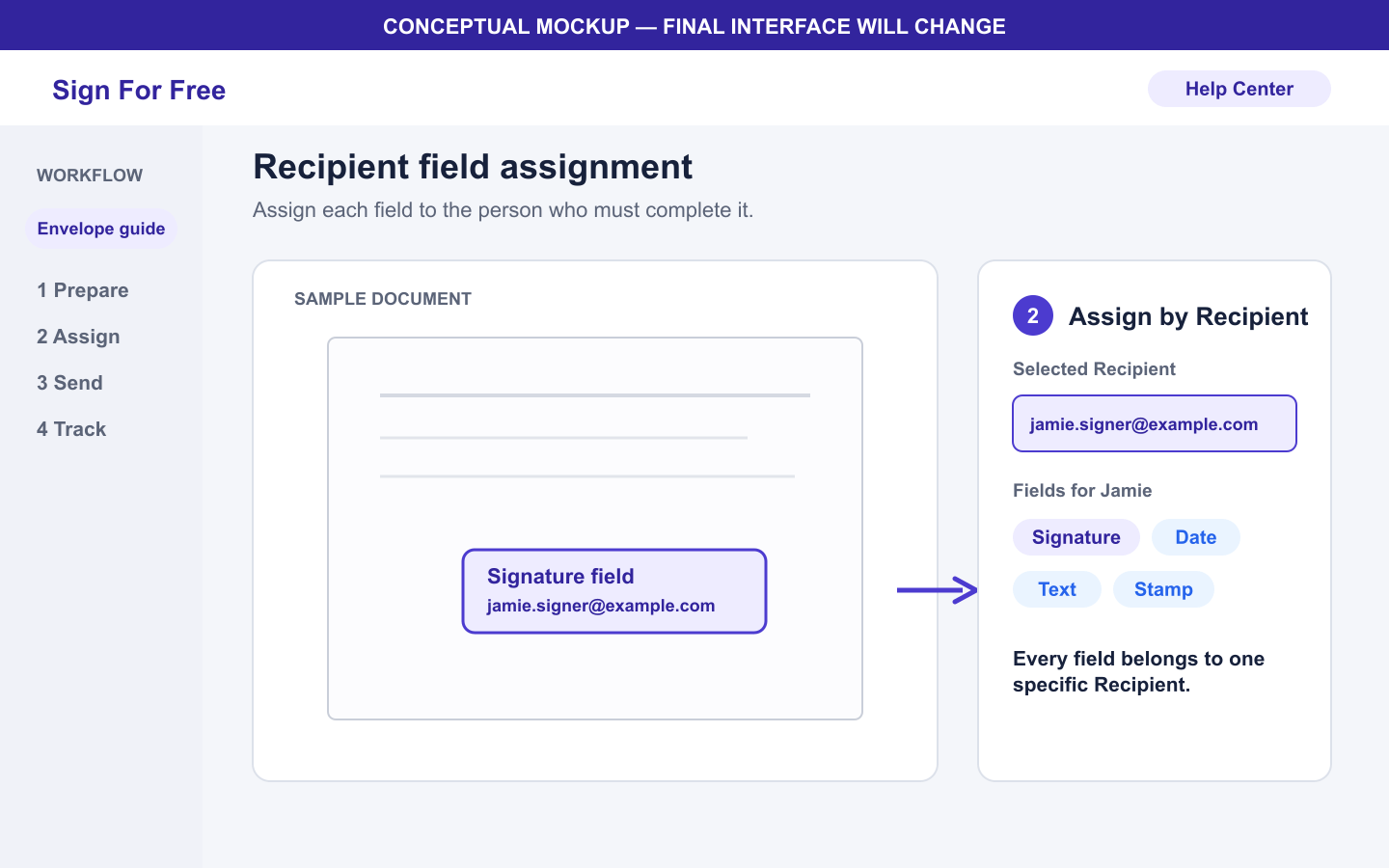
- Place a Signature, Date, Text, or Stamp field at each required location.
- Assign each field to the Sender or the Recipient who must complete it. Every Recipient must have at least one assigned field.
- Review every page and confirm that each required person has the correct fields.
What happens next
Continue to the Sender signing page. The Sender must complete every field assigned to them before Recipient invitations are ready.
Warnings and limitations
- The only current Recipient role is Signer.
- The current field types are Signature, Date, Text, and Stamp.
- The Sender does not count toward the Recipient limit.
- Send each private signing link only to the Recipient email assigned to that link.
Troubleshooting
- If you reach the Recipient limit, remove an unintended Recipient or review Free and Basic plan limits.
- If you cannot continue, confirm that the Envelope has at least one Recipient and at least one field assigned to every Recipient.
- If a person sees the wrong field, return to field placement and assign the field to the correct Sender or Recipient before you complete the Sender step.