Manage Envelopes · Sender
Understand Envelope statuses
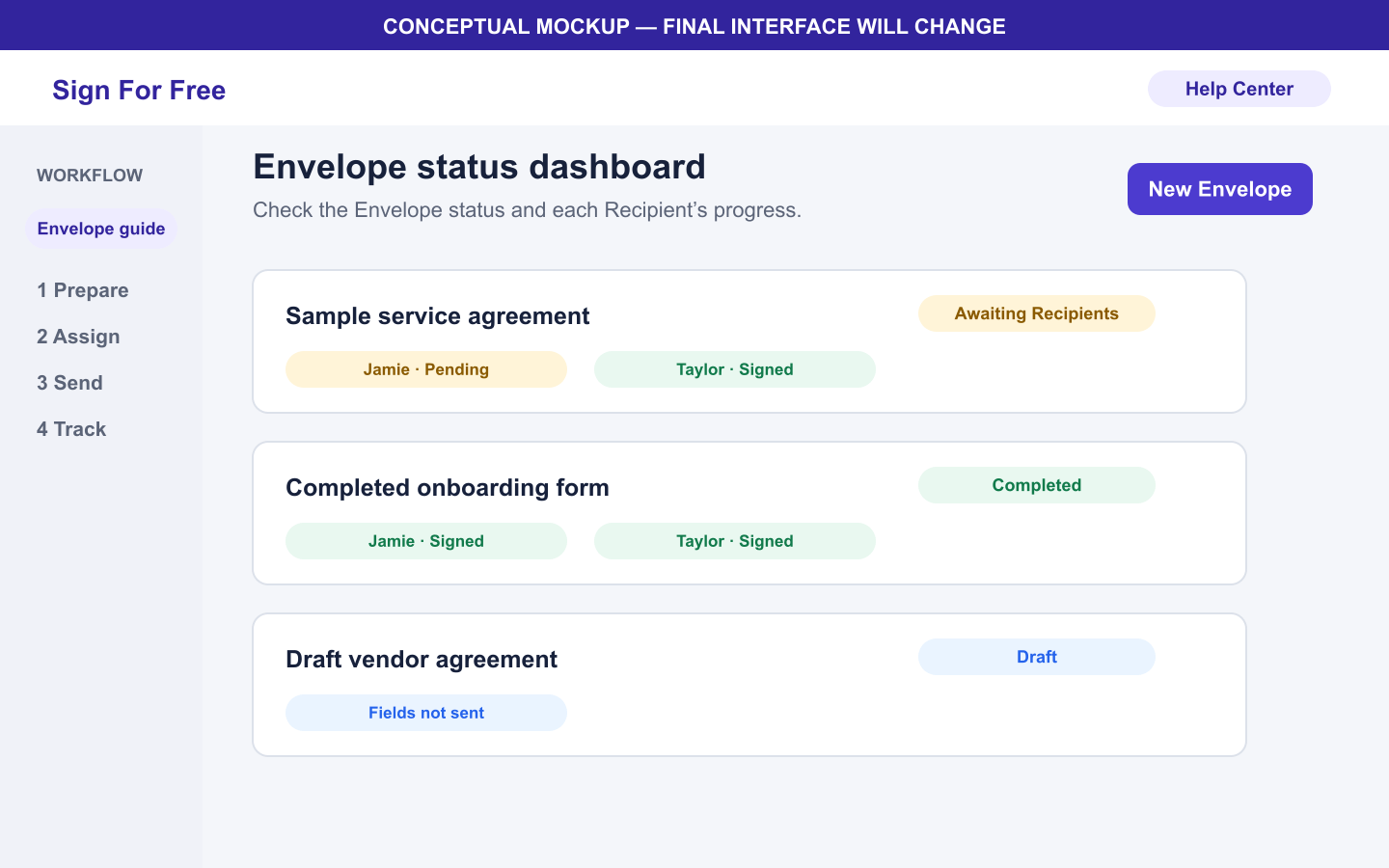
Use the Dashboard status to identify who must act next and whether the Envelope can still be signed.
Applies to
- Role Sender
- Plans Free, Basic Monthly, Basic Yearly
- Platform Web
Outcome
You can interpret the current status and choose the next supported action.
Before you start
- Sign in to the Sender account.
- Open the Dashboard.
- Find the Envelope by its title and review the Recipient progress shown with it.
Steps
- Locate the Envelope on the Dashboard.
- Read its status and compare it with the table below.
- Review the individual Recipient progress when the Envelope is waiting for Recipients.
- Take the next supported action listed for the status.
| Status | Meaning | Next action |
|---|---|---|
| Draft | The Envelope was created, but the Sender step is not complete. | Review the PDF, Recipients, and fields, then complete the Sender step. |
| Waiting for sender | The Sender must complete their assigned fields and signature. | Open the Envelope and sign as the Sender. |
| Waiting for recipients | The Sender step is complete and one or more Recipients have not signed. | Check delivery and Recipient progress. Resend when the action is available. |
| Completed | All Recipients signed and completion processing succeeded. | Save the completed PDF and audit certificate from the completion email. |
| Expired | The Envelope reached 72 hours after creation and can no longer be signed. | Create a new Envelope. |
What happens next
The status changes as the Sender and Recipients complete their steps. After successful completion, all parties receive the completed PDF and audit certificate by email.
Warnings and limitations
- The current UI may display Awaiting your signature for the Sender step.
- An Envelope expires 72 hours after it is created in any status.
- Completing an Envelope does not restart the 72-hour clock.
- Each uploaded file becomes eligible for automatic deletion when its provider-recorded object age reaches 3 days. Processing is asynchronous.
- Deleted is an internal lifecycle status, not a normal Dashboard action to follow in this workflow.
Troubleshooting
- If the Envelope is Expired, create a new Envelope rather than resending the old link.
- If all Recipients appear signed but the Envelope is not Completed, use the available completion retry action on the Dashboard.
- If the Envelope is Completed but an email is missing, review Resend an invitation or completed documents.