Get started · Sender
Send your first Envelope
Create an Envelope from a PDF, add Signers, place their fields, complete the Sender step, and prepare each Recipient invitation.
Applies to
- Role Sender
- Plans Free, Basic Monthly, Basic Yearly
- Platform Web
Outcome
Your Envelope reaches Waiting for recipients, and each Recipient can receive the private signing link assigned to them.
Before you start
- Sign in to your Sign For Free account.
- Prepare one local PDF smaller than 5 MB.
- Collect the email address of at least one Recipient.
- Decide which Signature, Date, Text, or Stamp fields each person must complete. Every Recipient must have at least one assigned field.
Steps
- Open your Dashboard and start a new Envelope.
- Enter a title that will help you recognize the Envelope on the Dashboard.
- Upload a PDF from your device.
- Add each Recipient by email address.
- Place each required Signature, Date, Text, or Stamp field on the PDF and assign it to the Sender or a specific Recipient. Assign at least one field to every Recipient.
- Sign and send email
- Your plan allowance or a send credit is used when sending is accepted. The server sends the emails; email retries do not use another credit.
What happens next
The Dashboard shows the Envelope as waiting for Recipients. Each Signer opens their private link and enters the email address that received the invitation. When all Recipients sign and completion succeeds, the Sender and all Recipients receive the completed PDF and audit certificate by email.
Warnings and limitations
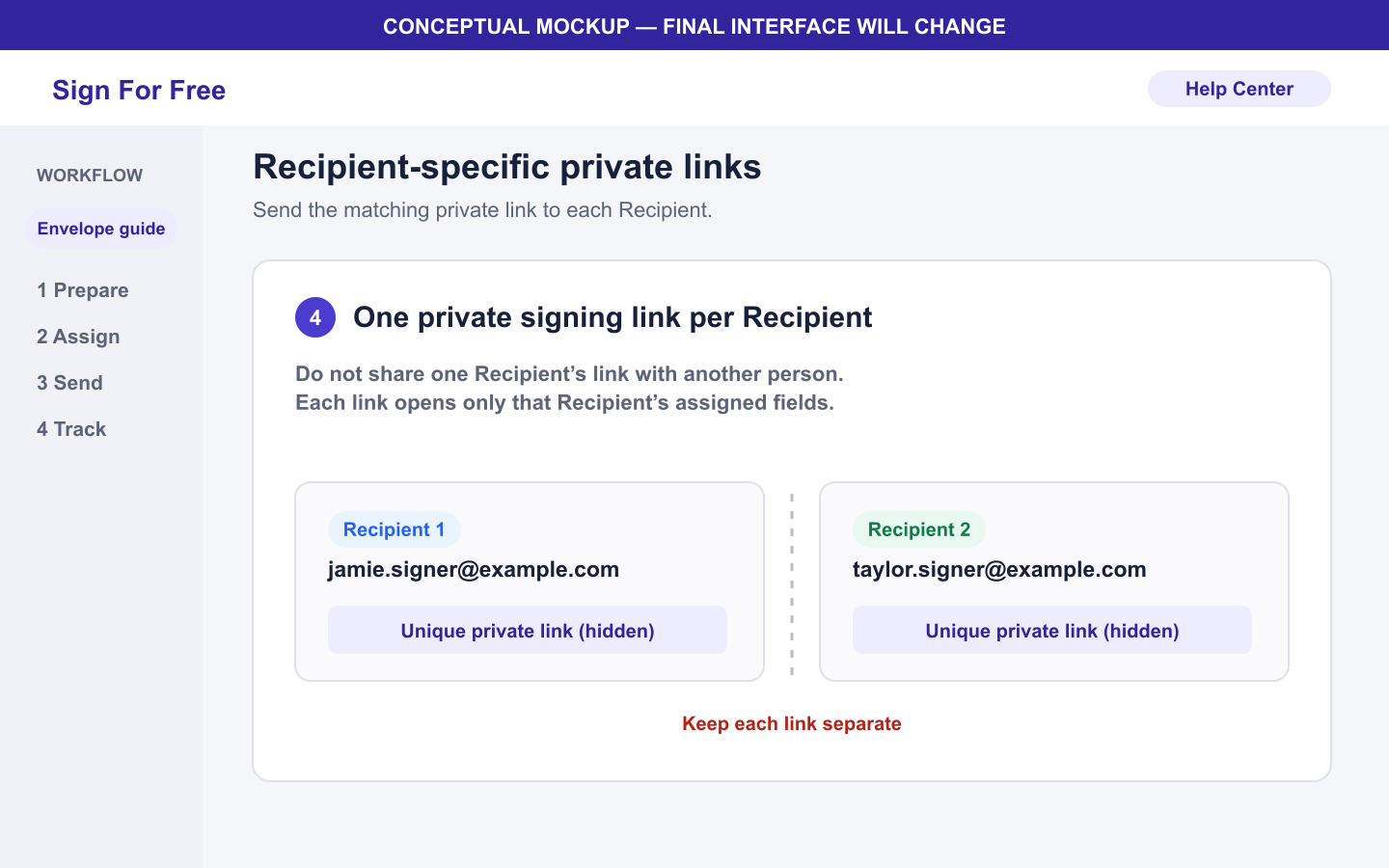
- Send each private signing link only to the Recipient email assigned to that link.
- You can add up to five Recipients on Free or ten on Basic. The Sender does not count toward this limit.
- An Envelope expires 72 hours after it is created. Completion does not restart the clock.
- Sign For Free does not provide a long-term Dashboard archive for completed files. Save both email attachments as soon as they arrive.
- Each uploaded file becomes eligible for automatic deletion when its provider-recorded object age reaches 3 days. Processing is asynchronous.
Troubleshooting
- If the PDF is rejected, review Upload a PDF and fix upload errors.
- If you cannot continue after adding people, confirm that you added at least one Recipient and assigned at least one field to every Recipient.
- Check the invitation delivery status and the available resend action. Email service acceptance does not guarantee inbox delivery.