Send Envelopes · Sender
Upload a PDF and fix upload errors
Add a supported PDF to a new Envelope and check the file when Sign For Free cannot accept it.
Applies to
- Role Sender
- Plans Free, Basic Monthly, Basic Yearly
- Platform Web
Outcome
Your PDF loads in the Envelope authoring screen and is ready for fields.
Before you start
- Use a PDF file. Other file types are not supported.
- Confirm that the file is smaller than 5 MB. A file that is exactly 5 MB is rejected.
- Open the PDF on your device to confirm that it has pages and can be read.
Steps
- Open your Dashboard and start a new Envelope.
- Enter an Envelope title.
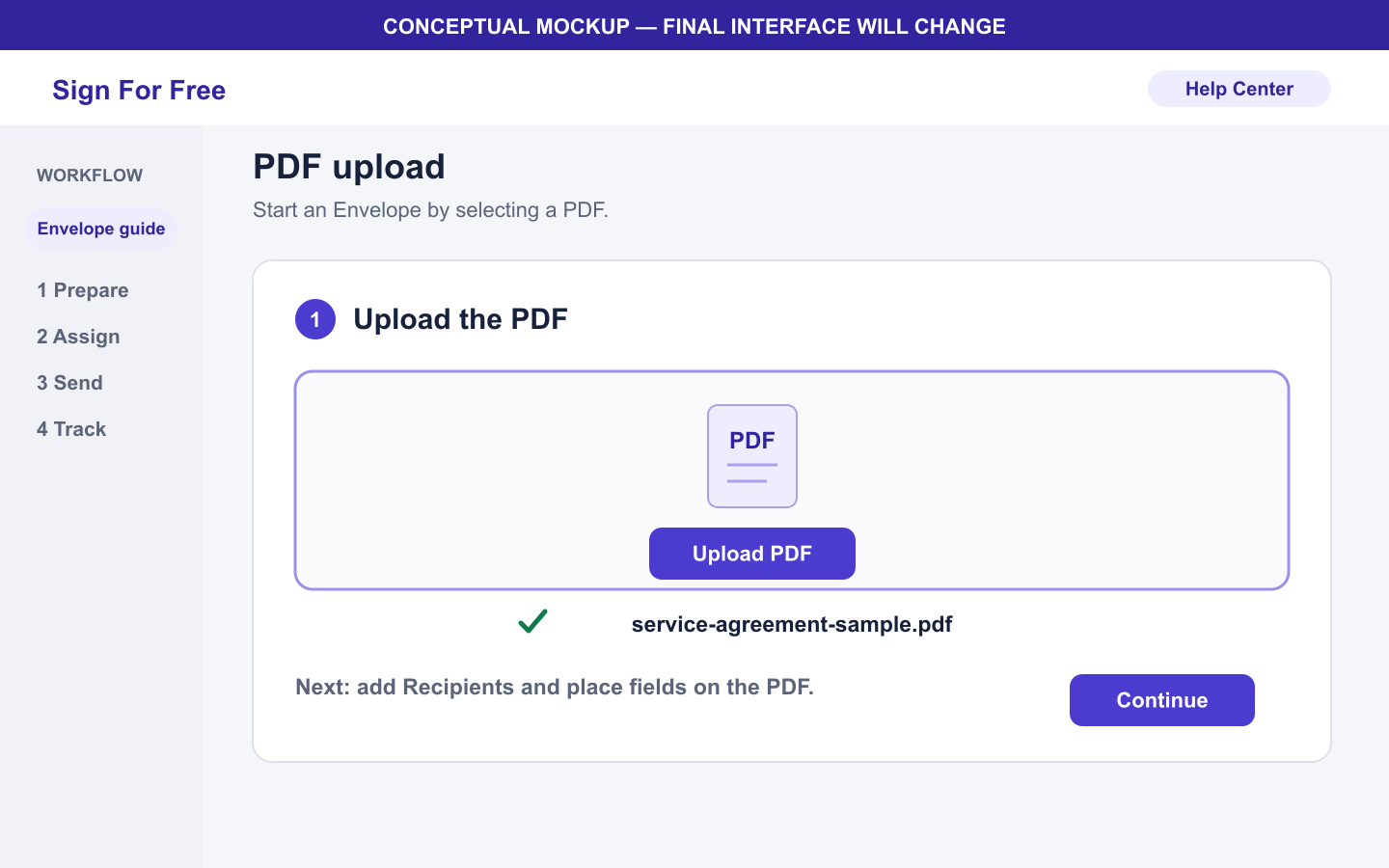
- Select the local upload option and choose the PDF from your device.
- Wait for the document preview to finish loading.
- Review the visible pages before you add Recipients and fields.
What happens next
After the preview loads, add at least one Recipient and place at least one Signature, Date, Text, or Stamp field for the Sender or a Recipient.
Warnings and limitations
- Only PDF files are supported.
- The PDF must be smaller than 5 MB, not 5 MB or smaller.
- Empty PDFs and PDFs that Sign For Free cannot parse are rejected.
- Upload the PDF from your device.
Troubleshooting
| Problem | What to check | Next action |
|---|---|---|
| Unsupported file type | The file name does not end in .pdf. | Export the source document as a PDF, then upload the exported file. |
| File is too large | The PDF is 5 MB or larger. | Create a smaller PDF and confirm the new file is below 5 MB. |
| Empty or unreadable PDF | The file has no pages or does not open in a PDF reader. | Export a new PDF from the source and open it before uploading again. |
| Preview does not finish | The selected file may be incomplete or unreadable. | Return to the Dashboard, start a new Envelope, and upload a verified copy. |